


In certain scenarios where the layout is fixed, resize action might cause inconsistency in the page structured layout. In this case, Full Screen feature provides another option to view WebTextEditor in its maximum size, without modifying the structure of the other elements in the page.
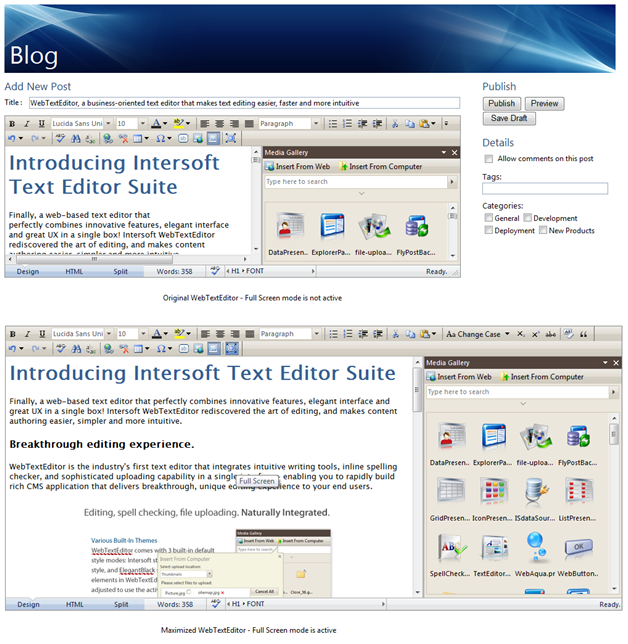
When Full Screen is activated, WebTextEditor will float above the other elements in the page and its size will be maximized according to the size of the document, providing very maximum editing area for users without changing the layout structure of the page. When user has finished editing, he can deactivate Full Screen mode and WebTextEditor will be placed to its original container using its original size.
To activate Full Screen mode, simply click FullScreen command in the toolbar. By default, this command is added automatically to toolbar when toolbar mode is not Minimal; however it can be disabled by setting EnableFullScreen property to false.
In This Section
How-to: Enable Full Screen in WebTextEditor
 See Also
Other Resources
{Hide ToolBar using header context menu}
{Allow Resize}